Select Version of EA Desktop:
Performing a catalog search from the navigation panel opens a list of catalog sessions in view mode.
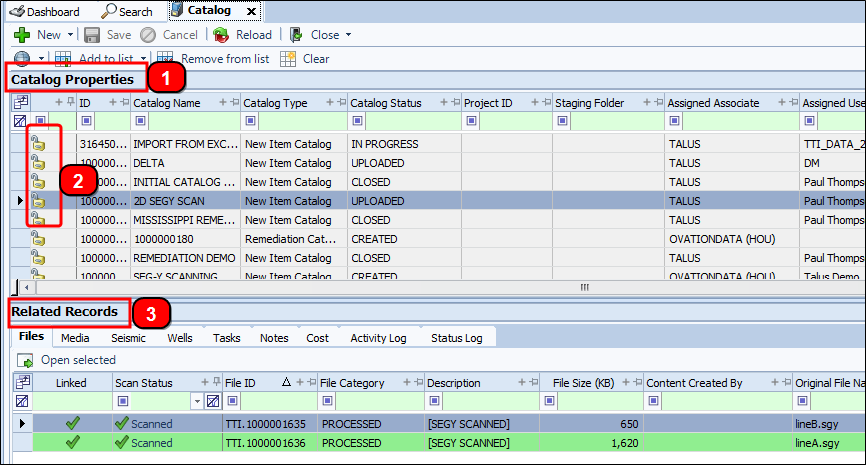
The view mode of the Catalog module includes the following:
-
Catalog Properties: This grid displays the full list of catalog sessions that match your search criteria.
-
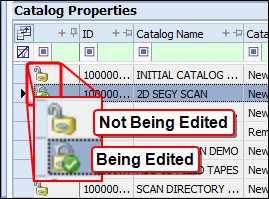
Lock Icon: Indicates when someone is editing the record. The lock displays as open when a record is not being edited. A green check displays to indicate that you are editing.
 Note:
Note:Even with the lock-edit indicator, the record remains available for others to open and edit. The green lock remains for 48 hours, unless you close the record sooner or another user begins editing the record.
-
Related Records: This window displays information associated with the selected item in Catalog Properties. The information displays in various tabs.
In the Files tab, you’ll notice that each linked file may have a highlight. A green highlight indicates that the required links have been met. A yellow highlight indicates you're missing a link to satisfy the required checks for files before you can push the items in production. A record without a highlight hasn’t been linked yet.
You can open a file from this tab by either:
-
Double-clicking the file on the grid
-
Highlighting a file on the grid then click Open selected.
To learn about edit mode, refer to Edit mode.
Performing a catalog search from the navigation panel opens the list of catalog sessions in a view mode.
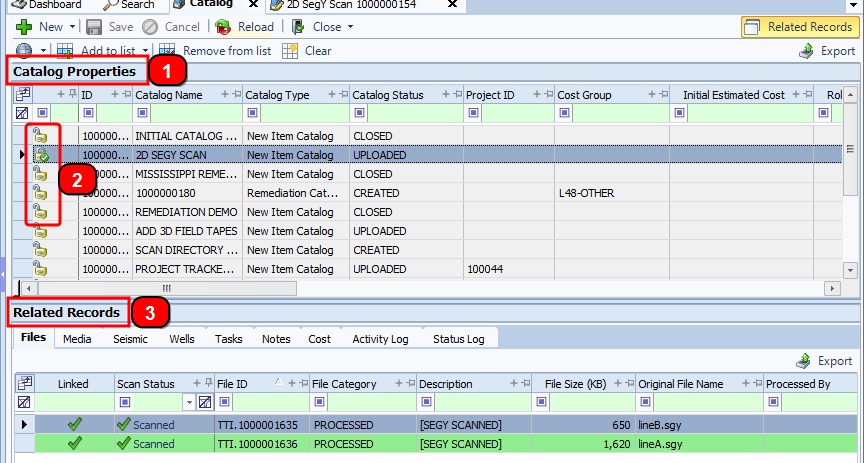
The view mode of the Catalog module includes the following:
-
Catalog Properties: This grid displays the full list of catalog sessions that match your search criteria.
-
Lock Icon: Indicates when someone is editing the record. The lock displays as open when a record is not being edited. A green check displays to indicate that you are editing.
Note:Even with the lock-edit indicator, the record remains available for others to open and edit. The green lock remains for 48 hours, unless you close the record sooner or another user begins editing the record.
-
Related Records: This window displays information associated with the selected item in Catalog Properties. The information displays in various tabs.
Note:In the Files tab, you’ll notice that each linked file may have a highlight. A green highlight indicates that the required links have been met. A yellow highlight indicates you're missing a link to satisfy the requiredchecks for files before you can push the items in production. A record without a highlight hasn’t been linked yet.
To learn about edit mode, refer to Edit mode.